 Cursor
 Codex
01
Bring your data
Connect a product spreadsheet and an image library. Your agent can inspect the columns and match photos to products.
CSV · XLS · XLSX + imagesCattalog for agents
Turn product data and photos into a finished catalog, right from your AI conversation. Design the pages, update the prices, and get a print ready PDF with Cattalog.
 Your agent + cattalog.ai

Your agent can build the layout, check the rendered pages and prepare the PDF for your review.
An example of what you can ask

Bring your own agent
Choose your agent to install Cattalog or follow the setup instructions.
 Install in ChatGPT
https://app.cattalog.ai/api/mcpInstall Cattalog from the ChatGPT plugin directory using the button above, then connect your account. For a manual connection, add the URL in your custom connector settings and authorize your workspace. Custom connector availability depends on your ChatGPT plan and settings.
Then ask: “Check my Cattalog connection and show me the catalogs I can work on.”
Need an account first? Create your Cattalog workspace
From brief to final file
The spreadsheet, the layout and the finished PDF belong to the same workflow.
Connect a product spreadsheet and an image library. Your agent can inspect the columns and match photos to products.
CSV · XLS · XLSX + imagesAsk for a cover, category sections and product pages. Refine the design in conversation and reuse components across the book.
Editable layouts + componentsAsk to see rendered pages before the final export. Get a digital PDF or a CMYK print file with bleed and crop marks.
Page previews + PDF exportA little inspiration
Copy an example, make it your own, and try it with your connected agent.
Spreadsheet → catalog
“Create a furniture catalog using my products spreadsheet and image library in Cattalog. Group products by collection, use a quiet editorial layout, and show me the cover and a product spread before exporting.”

New data, same layout
“Find my parts catalog in Cattalog and identify its price data source. Help me replace it with the new spreadsheet, keep the existing layout, and preview the updated prices before exporting a PDF.”
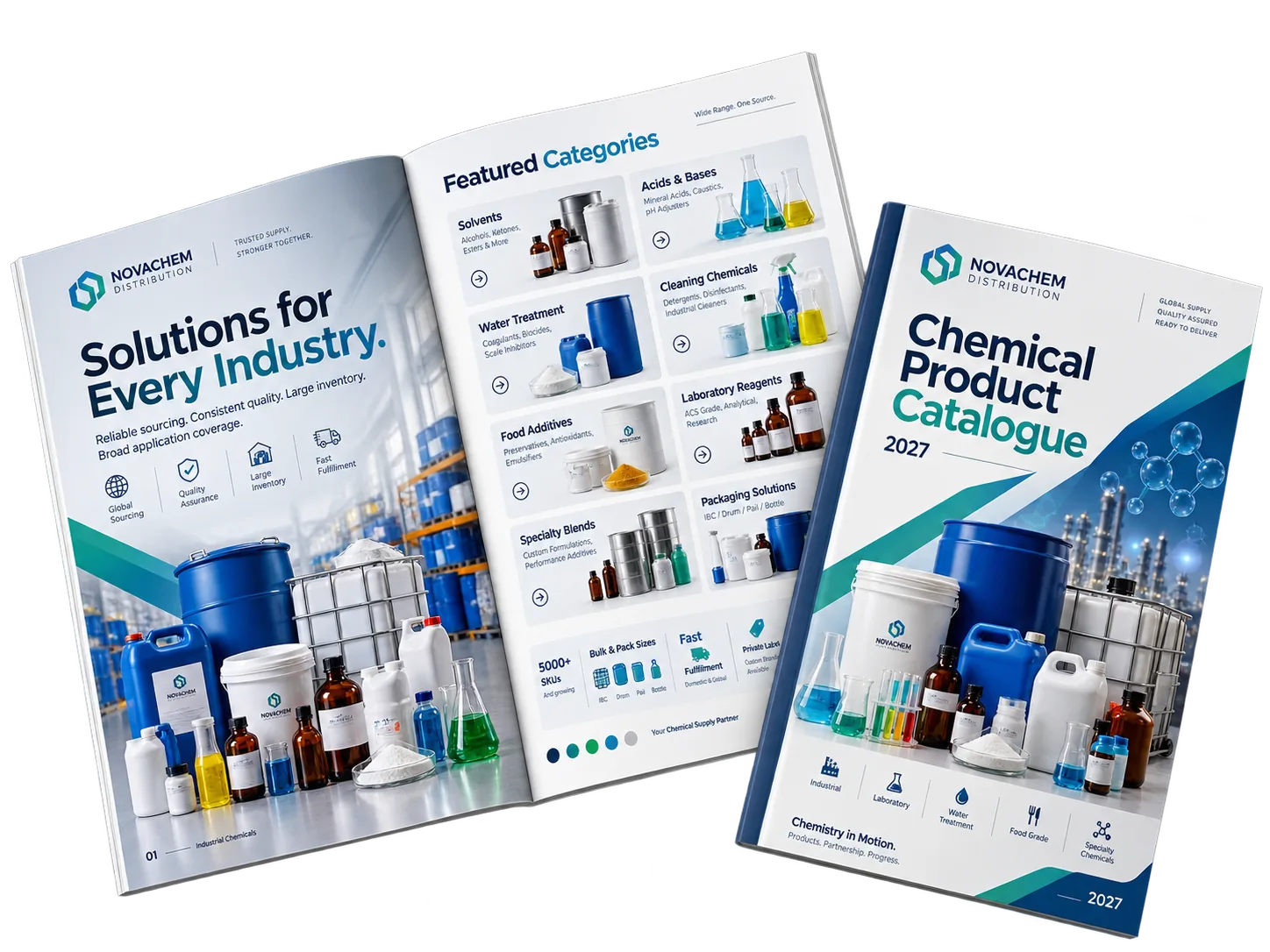
Data → product pages
“Build a chemical product catalog in Cattalog from my attached spreadsheet. Group by category and show the product code, grade, pack size and application in consistent tables. Use images from my workspace library.”

One component, every product
“Create a reusable equipment product card in my Cattalog catalog with a photo, model number and specification table. Use it across the product pages and preserve any locked components.”
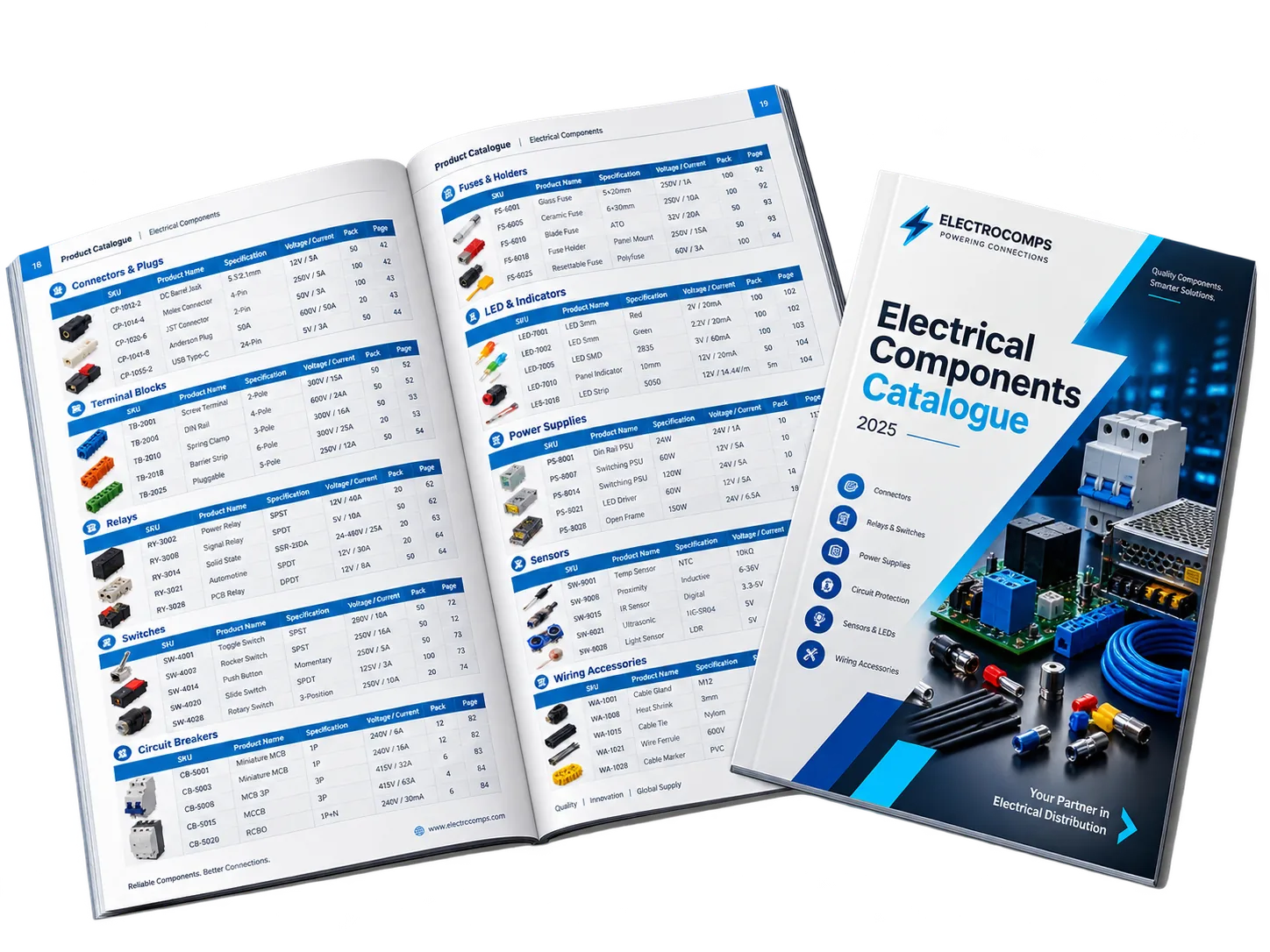
A catalog for each customer
“Read the data sources attached to my Cattalog catalog. Use the distributor price column for this edition, keep the product codes and page design, and show sample pages so I can review the result.”

Preview → print PDF
“Open my Cattalog catalog and preview the cover, a product page and the final page. Help me review them, then export a print PDF in CMYK with bleed and crop marks when I approve.”
Illustrative layouts from the Cattalog template gallery. Your results depend on your brief and product data. Explore templates
Give your agent room to work, with control over what it can access and change.
Each connection is bound to a workspace and respects your account’s role and document access.
Locked components and their dependencies stay protected until you unlock them in the editor.
Open the same catalog in the dashboard, inspect the pages, and keep editing after the conversation.
Rendering requires permission. PDF exports follow your plan and monthly export quota.
Inside the connection
Your agent discovers Cattalog’s tools through MCP. Here is what it can work with.
Start a catalog, find an existing one, and update its template, styles and data logic.
Read and edit page layouts and product components. Locked components remain protected.
Find workspace sources, attach spreadsheets, inspect rows and prepare data for the pages.
Create image libraries, upload photos, and find the right product image by file or folder.
Inspect rendered pages, request a web or print PDF, and retrieve the finished export.
Confirm the account and permissions, then read Cattalog’s catalog authoring guide.
A few things to know
It connects an AI agent to your Cattalog workspace. Through the Model Context Protocol, the agent can work with catalogs, product spreadsheets, image libraries and PDF exports using the same content you see in the dashboard.
Use a client that supports remote HTTP MCP servers, such as Claude, ChatGPT, Codex or Cursor. Cattalog is listed in the ChatGPT plugin directory and can also be installed in Codex. Connection options and custom connector availability depend on your client and plan. OAuth is supported for compatible clients; personal access tokens are available in Cattalog’s Settings → Developer.
You can describe the catalog you want in ordinary language. Your agent uses the MCP tools to edit the catalog source and components. You can open the result in Cattalog’s visual editor to review and refine it.
Yes. It can list catalogs it has access to, read their current source, inspect attached data and images, and update the same document. Changes are saved to the catalog you can open in the dashboard.
Connections are tied to a workspace and respect your account’s permissions. Personal access tokens let you choose document, source and rendering permissions. Locked components and their dependencies cannot be changed through MCP until you unlock them in the editor.
Yes. The agent can request a print PDF with CMYK, an output intent, bleed and crop marks, or an ordinary RGB PDF for digital use. PDF export requires a plan that includes it and uses your workspace’s monthly export quota.
Yes. The catalog’s template, styles, data transform and reusable components remain in your Cattalog workspace. You can continue editing in the dashboard or ask your connected agent to make the next revision.
Your products. Ready for the page.
Connect Cattalog to your agent and put your product data to work.